Business PBX User Guide
This guide covers the most essential features of our Business PBX product, whether you're using a desk phone, the Windows desktop app, or the mobile app.
Most of the features below — making calls, transferring, voicemail, call parking, conferencing, Do Not Disturb — work the same way in principle across all three clients. Use the section that matches how you make and receive calls day to day.
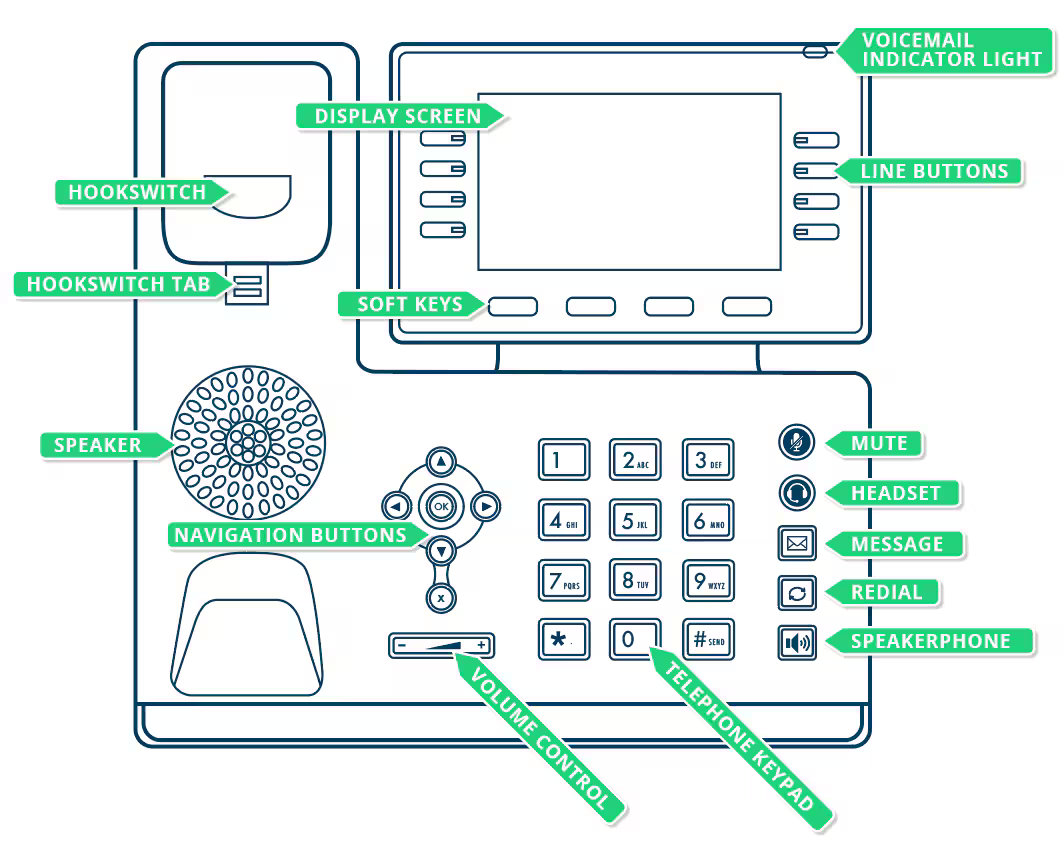
A number of different handset models can be used, including the Standard, Professional and Premium desk handsets, as well as wireless DECT handsets. The instructions below are based on the standard handset, with the feature keys referenced as shown here:
Making Calls
To make an external call, dial the required number using the keypad and press the Send soft key or the OK key. The handset will dial the number and connect you.
You can also call numbers programmed on your handset via the line buttons — for example, if a colleague's extension is on a line button, press that button to call them directly.
To end the call, hang up the handset or press the End Call soft key.
To redial a number, press the Redial key to open the placed calls list, scroll to the entry you want, and press the Call soft key.
Transferring Calls
Calls can be transferred using attended or blind transfers:
- An attended transfer puts the call on hold and calls the other extension first, so you can confirm they're able to take the call before connecting it.
- A blind transfer sends the call straight to another extension without checking with them first.
Attended Transfer
Once a call is answered:
- Press the Transfer soft key.
- Dial the extension number of the person you'd like to transfer the call to, then press Send.
- Wait for the transfer recipient to answer and confirm they'll take the call.
- Press the Transfer soft key again to connect the call.
Tip
If you want to return to the original caller without transferring, press the Resume soft key instead.
Blind Transfer
Once a call is answered:
- Press the Transfer soft key and enter the extension number of the person you'd like to transfer the call to.
- Press the B Transfer soft key.
The call is transferred immediately to the called extension.
Voicemail
Voicemails can be accessed via your handset, or by email if voicemail-to-email has been set up for your account.
The Voicemail Indicator Light flashes on your handset when you have new messages. Press the Message key to connect to the voicemail system, then use these options:
| Key | Action |
|---|---|
* | Play messages |
1 | Change your profile |
4 | Delete all read messages |
8 | Change your greeting message |
Call Parking
If call parking is configured, your handset will show Shared Parking (SP) line keys.
To park a call, press the desired Shared Park line key — all extensions will see that line key change from green to red. Any other extension can then pick up the parked call by pressing the same SP line key.
Conference Calls
After making or answering a call:
- Press the Conference soft key on the touchscreen.
- Dial the number of the person you wish to add and press the Send soft key.
- Once they answer, press the Conference soft key again.
The call is added to the conference.
Do not Disturb
Press the DND soft key to change your handset's status from Available to Do Not Disturb — a DND icon appears on screen to confirm the change. Press DND again to return to Available status.
To install the Windows app, search for 3CX in the Microsoft Store and install it. Once started, log in using your 3CX URL, email or extension number, and your password.
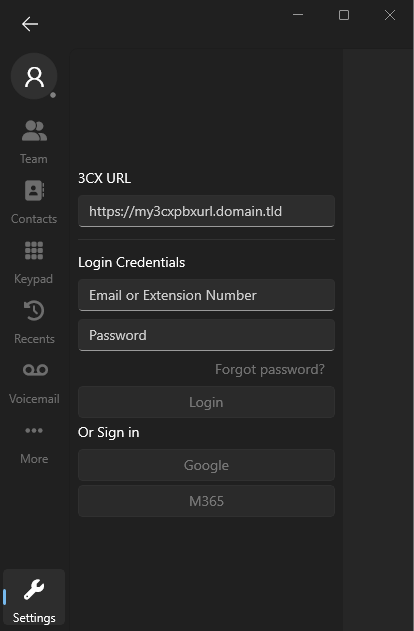
Once logged in, the app's main interface looks like this:
Making Calls
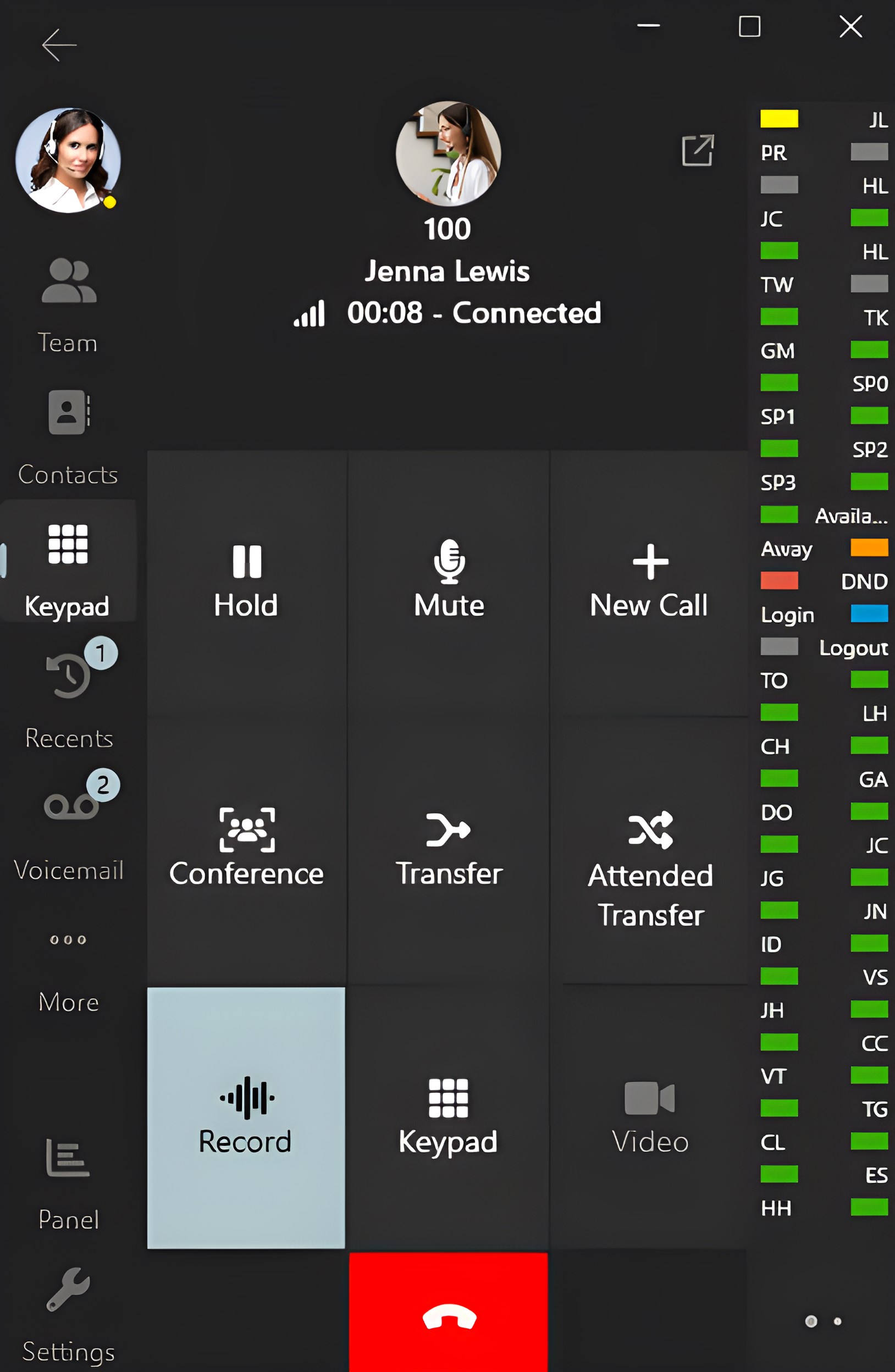
To make an external call, click the Keypad icon, enter the number, and click the green handset icon (or press Return). The app will dial the number and connect you.
You can also call team members using the Team icon or via the line buttons — click a colleague's line button to call them directly.
To end the call, click the red handset icon or press Escape.
To redial a number, click the Recents icon to open the placed calls list, then click the entry you want to place the call.
Transferring Calls
The same attended and blind transfer concepts apply as with physical phones: an attended transfer confirms with the other extension first, while a blind transfer sends the call straight through.
Attended Transfer
Once a call is answered:
- Press the Attended Transfer button.
- Dial the extension number of the person you'd like to transfer the call to.
- Wait for the transfer recipient to answer and accept the call.
- Press the Join button to connect the call.
Tip
To return to the original caller without transferring, press the red handset button to end the call to the recipient, then click Hold.
Blind Transfer
Once a call is answered:
- Press the Transfer button and dial the extension number of the person you'd like to transfer the call to.
The call is transferred immediately to the called extension.
Voicemail
Voicemails can be accessed via the app, or by email if voicemail-to-email has been set up for your account.
A number icon appears on the Voicemail button when you have new messages. Click Voicemail to see all messages in your voicemail box. To listen to a message, click it and press Answer.
Right-click a message for further options:
- Mark the message as Unheard
- Delete the voicemail
- Open the contact entry
- Copy the number
Call Parking
If call parking is configured, the app shows Shared Parking (SP) line keys.
To park a call, press the desired Shared Park line key — all users will see that line key change from green to red. Any other user can then pick up the parked call by clicking the same SP line key.
Conference Calls
After making or answering a call:
- Press the Conference soft key on the touchscreen.
- Dial the number of the person you wish to add to the conference.
Once they answer, the call is added to the conference automatically.
Do not Disturb
Click your avatar icon and choose Do Not Disturb to change your status — a small red icon appears next to your avatar to confirm. Click Available to return to Available status.
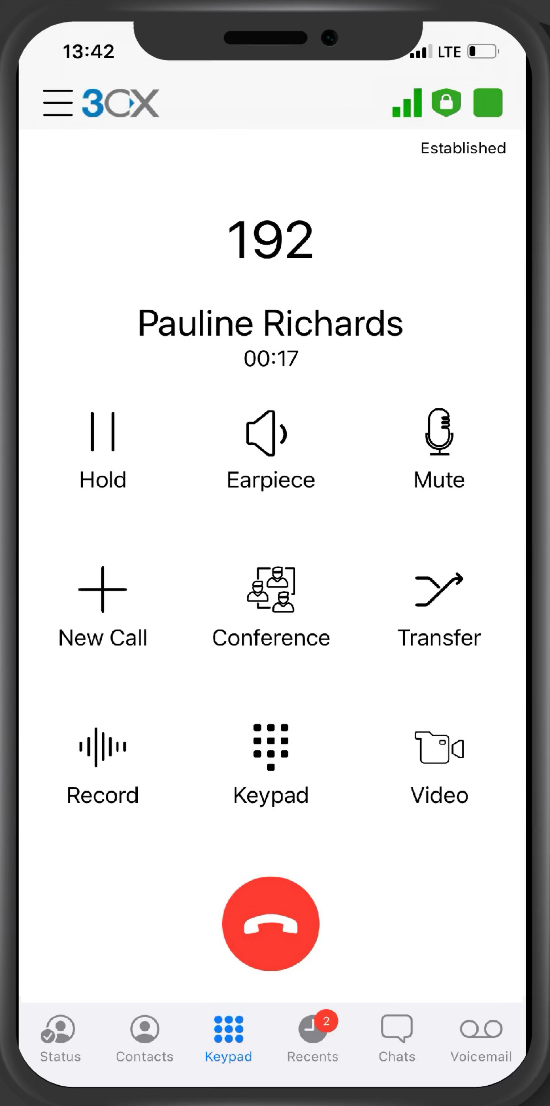
To install the app, open the Apple App Store or Google Play Store and download the 3CX app. Once installed, use the QR code from your welcome email to activate your account. The app's interface looks like this:
Making Calls
To make an external call, tap the Keypad icon, dial the number, and tap the green handset icon. The app will dial the number and connect you.
You can also call team members using the Team icon.
To end a call, tap the red handset icon.
To redial a number, tap the Recents icon to open the placed calls list, then tap the entry you want to place the call.
Transferring Calls
The same attended and blind transfer concepts apply as on the handset and Windows app.
Attended Transfer
Once a call is answered:
- Tap Transfer, then tap Att Transfer.
- Select the extension you'd like to transfer the call to.
- Wait for the transfer recipient to answer and accept the call.
- Tap Join to connect the call.
Tip
To return to the original caller without transferring, press the red handset button to end the call to the recipient.
Blind Transfer
Once a call is answered:
- Tap Transfer, then tap Transfer again.
- Select the extension you'd like to transfer the call to.
The call is transferred immediately to the called extension.
Voicemail
Voicemails can be accessed via the app, or by email if voicemail-to-email has been set up for your account.
A number icon appears on the Voicemail button when you have new messages. Tap Voicemail to see all messages in your voicemail box. Tap a message to download and play it.
Tap the ellipsis (⋯) icon next to a message for further options:
- Call the number that left the message
- Mark the message as Unheard
To delete a message, swipe left on it and tap Delete.
Call Parking
To park a call, tap Transfer then Transfer again. In the search box, enter SP1 (for Shared Park 1) and tap Call SP1.
To pick up a parked call, go to the Keypad screen, tap the search icon, type SP1, and tap Call SP1.
Conference Calls
After making or answering a call:
- Tap the Conference icon.
- Dial the number of the person you wish to add to the conference.
Once they answer, the call is added to the conference automatically.
Do not Disturb
Tap the status icon in the top right of the screen and choose Do Not Disturb — the status icon turns red to confirm. Tap Available to return to Available status.
Need more help?
If you run into an issue that isn't covered here — a feature that isn't behaving as described, or a setting you can't find — contact us with your extension number and a description of what you were trying to do.