Troubleshooting your Service
This guide will help you troubleshoot common issues with your Home Internet service. If you find that you are having issues and can't resolve these, please don't hesitate to contact our support team.
If you're having trouble with your FTTP connection, work through the steps below in order.
1 Check for Outages
Before doing anything else, check the nbn® network outages page to see if there's a known issue in your area.
2 Check the lights on your NBN connection box
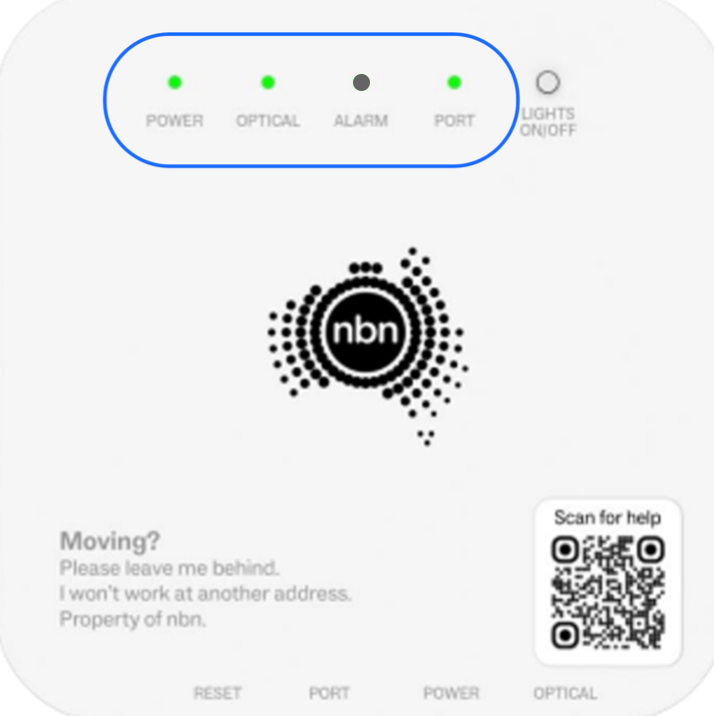
LED Status Lights
Power: Solid green indicates the device is powered on.
Optical: Solid green indicates a successful connection to the nbn network.
Alarm: This LED should be normally off.
Port: Flashing green indicates your router is connected to the port and is communicating with the NBN connection box.
Your Power, Optical and Port lights should all be on and green. If any of these are off, red, or flashing, or your Alarm light is on, make a note of the pattern before continuing — you'll need it if you have to contact us.
3 Power cycle your equipment
Turn off your NBN connection box and your router. Wait 60 seconds, then turn the NBN connection box back on first. Wait for its lights to settle (around 5 minutes), then turn your router back on.
4 Check your cabling
Make sure the Ethernet cable between the NBN connection box's Ethernet port and your router's WAN port is firmly plugged in at both ends and isn't damaged.
5 Test with a wired connection.
Connect a laptop directly to one of your router's LAN ports with an Ethernet cable and turn off Wi-Fi on the laptop. If the wired connection works but Wi-Fi doesn't, the issue is with your wireless network rather than your internet connection.
6 Check your router's configuration.
Confirm your router is set up with the correct connection settings.
7. Still not working?
Contact our support team with the light pattern from step 2 and what you've already tried, so we can help you faster.
If you're having trouble with your fibre to the curb (FTTC) connection, work through the steps below in order.
1 Check for Outages
Before doing anything else, check the nbn® network outages page to see if there's a known issue in your area.
2 Check the lights on your NBN connection box
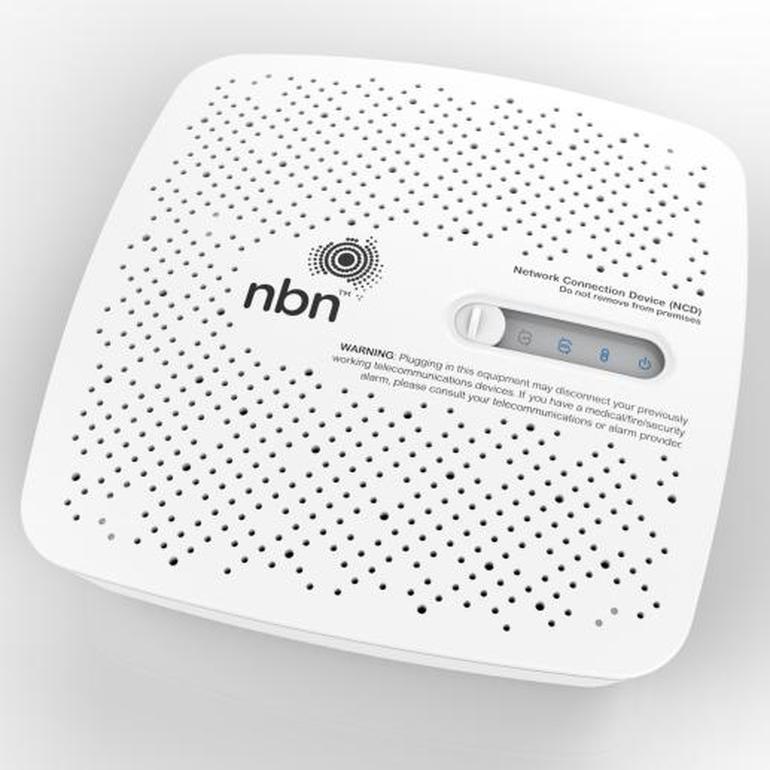
LED Status Lights
LAN: Flashing blue indicates your router is connected to the port and is communicating with the NBN connection box.
DSL: Solid blue indicates a successful connection to the nbn network.
Connection: Solid blue indicates reverse power is being suppliedto outdoor nbn equipment.
Power: Solid blue indicates the device is powered on.
Your LAN, DSL, Connection and Power lights should all be on and blue. If any of these are off, amber or red, make a note of the pattern before continuing — you'll need it if you have to contact us.
3 Power cycle your equipment
Turn off your NBN connection box and your router. Wait 60 seconds, then turn the NBN connection box back on first. Wait for its lights to settle (around 5 minutes), then turn your router back on.
4 Check your cabling
Make sure the Ethernet cable between the NBN connection box's Ethernet port and your router's WAN port is firmly plugged in at both ends and isn't damaged.
5 Test with a wired connection.
Connect a laptop directly to one of your router's LAN ports with an Ethernet cable and turn off Wi-Fi on the laptop. If the wired connection works but Wi-Fi doesn't, the issue is with your wireless network rather than your internet connection.
6 Check your router's configuration.
Confirm your router is set up with the correct connection settings.
7. Still not working?
Contact our support team with the light pattern from step 2 and what you've already tried, so we can help you faster.
If you're having trouble with your FTTN or FTTB connection, work through the steps below in order.
1 Check for Outages
Before doing anything else, check the nbn® network outages page to see if there's a known issue in your area.
2 Check the lights on your router
LED Status Lights
Power/DSL: Solid green indicates the device is powered on and the connection is established.
WLAN: Flashing green indicates Wifi is connected with data transfer.
Info: Solid green indicates normal operation.
Your Power/DSL, WLAN and Info lights should all be on and green. If any of these are off, or blinking red, make a note of the pattern before continuing — you'll need it if you have to contact us.
3 Power cycle your equipment
Turn off your router. Wait 60 seconds, then turn it back on. Wait for the connection to establish - this may take up to 5 minutes.
4 Check your cabling
Make sure the telephone cable between the router's DSL port and the telephone socket is firmly plugged in at both ends and isn't damaged.
5 Test with a wired connection.
Connect a laptop directly to one of your router's LAN ports with an Ethernet cable and turn off Wi-Fi on the laptop. If the wired connection works but Wi-Fi doesn't, the issue is with your wireless network rather than your internet connection.
6 Check your router's configuration.
Confirm your router is set up with the correct connection settings.
7. Still not working?
Contact our support team with the light pattern from step 2 and what you've already tried, so we can help you faster.
If you're having trouble with your Fixed Wireless connection, work through the steps below in order.
1 Check for Outages
Before doing anything else, check the nbn® network outages page to see if there's a known issue in your area.
2 Check the lights on your NBN connection box
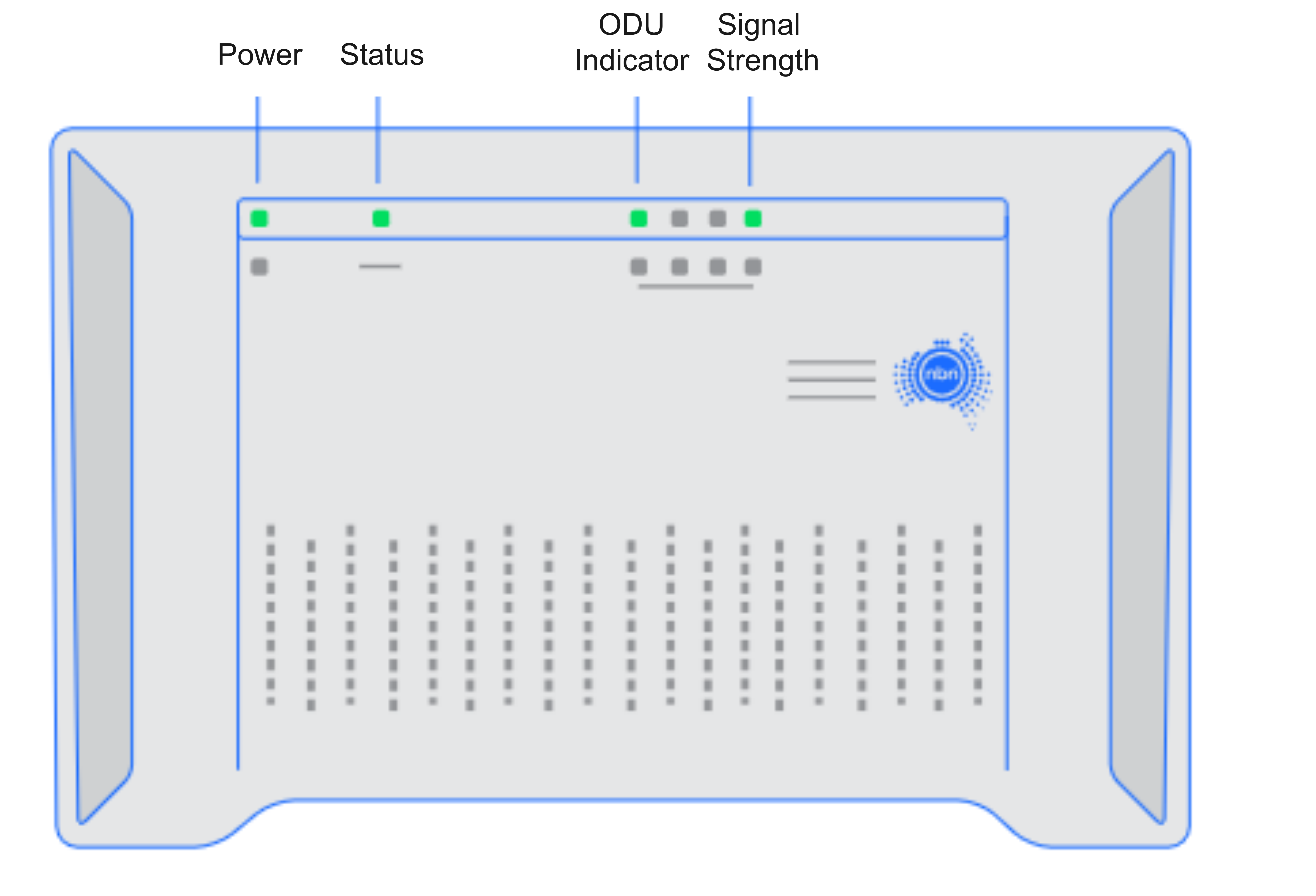
LED Status Lights
Power: Solid green indicates the device is powered on.
Status: Flashing green indicates normal operation of your NBN service.
ODU Indicator: Solid or flashing green indicates normal outdoor unit operation.
Signal Strength: Green, amber or red indicates the received signal level.
Your Power, Status and ODU Indicator should all be on and green. If any of these or the Signal Strength light are off, amber or red, or if the Signal Strength light is off, make a note of the pattern before continuing — you'll need it if you have to contact us.
3 Power cycle your equipment
Turn off your NBN connection box and your router. Wait 60 seconds, then turn the NBN connection box back on first. Wait for its lights to settle (around 5 minutes), then turn your router back on.
4 Check your cabling
Make sure the Ethernet cable between the NBN connection box's Ethernet port and your router's WAN port is firmly plugged in at both ends and isn't damaged.
5 Test with a wired connection.
Connect a laptop directly to one of your router's LAN ports with an Ethernet cable and turn off Wi-Fi on the laptop. If the wired connection works but Wi-Fi doesn't, the issue is with your wireless network rather than your internet connection.
6 Check your router's configuration.
Confirm your router is set up with the correct connection settings.
7. Still not working?
Contact our support team with the light pattern from step 2 and what you've already tried, so we can help you faster.